
How to Save, Backup, and Resume The Freak Circus (Browser & Local Guide)
How to Save & Backup in The Freak Circus (Browser & Standalone)
Disclaimer: https://thefreakcircus.my is a fan-run guide portal and play mirror built for the community. The official developer storefront is garula.itch.io.
Because The Freak Circus uses the Ren'Py engine, save files are managed differently depending on whether you play instantly on our web browser mirror or run standalone packages locally. This guide details how to keep your save files secure, back them up, and transfer progress between different versions.
[!CAUTION] Web browser saves are highly sensitive. Clearing browser cookies, history, or cache will permanently delete your web save files. Follow the instructions below to export and secure your progress.
💾 Saving & Locating Save Files by Platform
Choose your play environment below to check how saves are managed and where they are stored on your device:
🌐 Web Browser Save Logic (HTML5 / IndexedDB)
When playing on our web mirror, your progress is saved in your browser's local sandbox storage (IndexedDB).
- Auto-Deletion Risk: Modern browsers (especially Safari on iOS/Mac) will automatically purge local database storage for sites you haven't visited in 7 days.
- No Cross-Browser Syncing: A save made in Chrome will not appear in Edge, Safari, or on your mobile device.
- Incognito Warning: Playing in Private/Incognito tabs prevents the browser from keeping permanent database files. Once the tab closes, your saves are gone.
🛡️ How to Manually Export & Backup Web Saves:
To save your game and back it up, you can use the in-game save menu and the web-engine overlay:
- In-Game Save: Open the side menu and click Save (or press Esc) to choose an empty slot to record your progress.
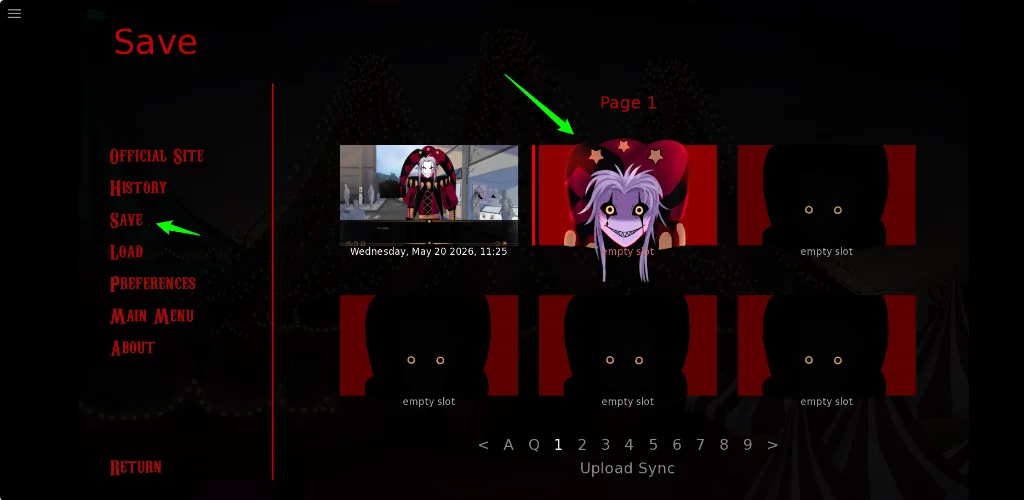
- Web-Engine Export: Tap the three lines icon in the top-left corner of your browser screen to open the engine overlay, then click Export Saves (1) to download your entire save profile as a
savegames.ziparchive.
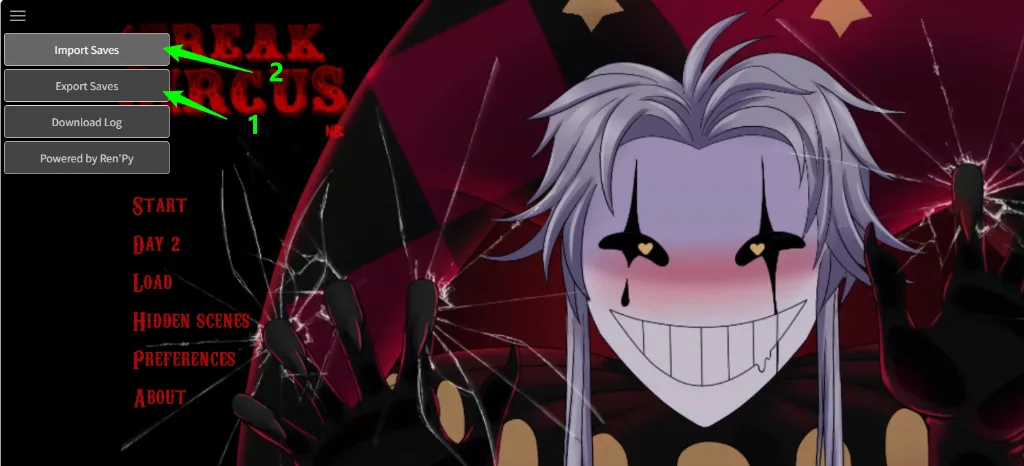
- Importing progress: To restore a previous backup, open the same top-left engine overlay, click Import Saves (2), and select your downloaded
savegames.zipto instantly restore all slots.
💻 Standalone Windows PC Save Directory
If you downloaded and extracted the Windows PC ZIP package, your saves are kept completely safe on your local drive and cannot be wiped by browser cleanup tools.
📂 Local File Path:
Press Win + R, paste the following path, and press Enter to find your save folder:
%APPDATA%/RenPy/TheFreakCircus/(Actual full path: C:\Users\<Your-Username>\AppData\Roaming\RenPy\TheFreakCircus\)
🛡️ How to Backup:
Simply copy the .save files inside this folder to a secure backup directory or cloud drive.
🍏 Standalone macOS Save Directory
If you are running the native macOS standalone app, your saves are stored securely in your user library.
📂 Local File Path:
Open Finder, press Cmd + Shift + G, paste the path below, and press Enter:
~/Library/RenPy/TheFreakCircus/🛡️ How to Backup:
Copy any file ending in .save in this folder to keep your checkpoints safe.
🤖 Android Standalone App Save Path
If you installed the standalone Android APK on your mobile device, the app stores saves locally in your phone's secure app partition.
📂 Local File Path:
Saves are located inside the standard internal storage directory:
/Android/data/my.thefreakcircus.game/files/saves/Note: Due to security restrictions on Android 11+, you may need a specialized file manager app (like ZArchiver or Solid Explorer) to access the /Android/data/ folder directly.
🔄 How to Transfer Web Saves to Standalone PC/Mac Builds
If you played the game in your browser and want to switch to a standalone desktop build for smoother performance without losing your story progression, follow these steps:
-
Export the Web Save: Click the top-left drawer menu in your browser, and select Export Saves to download
savegames.zip. 2. Extract the ZIP: Double-click or extractsavegames.zip. Inside, you will find individual files like1-1-LT1.saveand your game history configurationpersistent.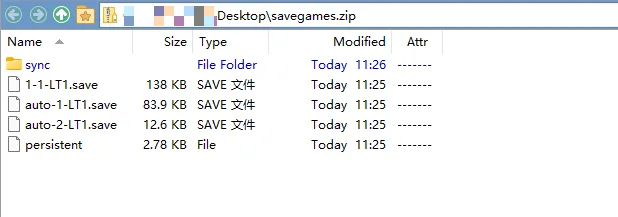
- Locate PC Save Directory: On your computer, open your standalone save folder (e.g.
%APPDATA%/RenPy/TheFreakCircus/on Windows). - Copy the File: Drop your
.savefiles (and thepersistentfile if you want to copy your settings/endings progress) directly into this folder. - Launch & Play: Open your standalone desktop game. Go to the Load menu, and your transferred slots will be fully visible and playable!
- Locate PC Save Directory: On your computer, open your standalone save folder (e.g.
⚡ Lost Your Saves? Use "Quick Skip" to Recover Fast
If you cleared your cookies and lost your progress, do not panic! You can use the game's built-in fast-forward features to speed-run back to your previous story checkpoint in under 2 minutes:
⚙️ Recommended Recovery Settings:
- Open the game Preferences / Settings from the main menu.
- Under Skip, change the mode to All Text (this allows the skip function to fast-forward past text you haven't technically "seen" on this clean browser profile).
- Enable Skip After Choices (this ensures the engine doesn't stop skipping immediately when you pick a dialogue option, keeping the speed run active).
- Return to the game, click Skip, and let the engine fast-forward until you reach your target checkpoint.
- CRITICAL STEP: Once you reach your previous spot, go to Settings and change the Skip mode back to Seen Text Only so you do not accidentally skip new story events!
❓ FAQ
How do you save in The Freak Circus on browser?
Web saves are captured in your browser's local cache sandbox. To protect your progress, always use multiple slots and utilize the Export Save button to save a copy directly to your hard drive.
Why is my browser save missing after a page refresh?
Most cases occur when:
- You are using Private / Incognito mode (which deletes database files on tab closure).
- You ran a system cleanup tool (like CCleaner) or cleared your browser's site data.
- You are on Safari (iOS/Mac), which automatically purges storage for inactive sites after 7 days.
Is the save file compatible between browser and PC versions?
Yes! Because both builds share the same Ren'Py codebase, you can export your .save file from the browser version and drop it directly into your PC's %APPDATA%/RenPy/TheFreakCircus/ folder.